







|
----------------------
What is my username and password?
Due to security reasons you will need to contact your MLS office to obtain your username or to reset your password.
Back to Top
-----------------------
How do I set up a view?
Short Display Preferences
Short display formats (Views) can be created or modified from this screen. You may select which columns of information you wish to display and whether to include photos with the information. Click "new" to create a View. Click in the description field to enter a name for the new format. Enter a title in the following field. Select whether to show a picture of the property from the drop-down list. Click in the box of your choice to set the View as the default for a particular search or listing function. Click the criteria from the list that you wish to include as columns in the View. Hold down the control key on your keyboard to select multiple items from the list. Click the "Add" button to move items to the selected column at the right. You may order the chosen fields by selecting them at the right and clicking the "Move Up" and "Move Down" buttons. When you are satisfied with your selections click "next" to save your changes and return to the My Views screen.
Your new View will be displayed in the Available Views list. You may see the title and selected columns for the View by highlighting it within the list. Click on the "Give to someone" button to share the View with users within your office or company (when logged in as the office or company). You may edit or remove any formats as you wish from the My Views screen.
http://members.x-mls.com/html/help/shortdisplay.html
Back to Top
-----------------------
How Do I load a photo?
Photo Maintenance
This function allows you to add, edit, remove or reorder listing photos.
To add a photo:
If you are adding a photo to a listing for the first time, click the "Browse" button to locate the file. A window will appear where you may choose the photo you wish to load. Click on the file to select it and click "Open", or double-click on the file name to select it. Enter a description for the photo (this step is required to identify the photo within the list of available photos at the left). You may enter a caption if you wish, which will appear below the photo. Click the "Add" button to upload the photo. The first photo loaded will be considered the Primary Photo and will appear on search results, exports, advertising websites, and in the MLS publication (where applicable). To add additional photos, click the "Add Photo" button and follow the same procedure.
You may edit an existing photo's description or caption by clicking the "Edit/Replace" button. Type in a new description or caption and click the "Save Changes" button. You may replace the photo by placing a check in the Replace Photo box and clicking the "Browse" button to locate your new photo. Click "Save Changes" to complete the process.
To view a photo:
Select the photo you wish to view from the list at the left. The selected photo will appear in the frame on the right. You may also return to the edit listing screen by clicking the link provided at the top left, then click the Photo Tour link above the listing number entry to view all the photos individually or at once.
To remove a photo:
Select the photo you wish to remove from the list at the left. The selected photo will appear in the frame on the right. Click the "Remove" button and click "OK" to confirm your request.
To reorder photos:
Select the photo you wish to move from the list of available photos at the left. Click the up or down arrow at the left of the list to reposition the photo, or you may click and drag the photo to the desired position by holding down the button on your pointing device.
http://members.x-mls.com/html/help/photomaintenance.html
Back to Top
-----------------------
How do I run a Custom Hot Sheet?
Custom Hotsheet
In the left frame, it's under "Daily Functions" - "Hotsheet" - Than click on "Custom Hotsheet Settings"
You may run two kinds of custom hot sheets: a "quick search" hot sheet and a "saved search" hot sheet.
To run a "quick search" hot sheet, first select which history events you would like to see from the box on the left side of the screen (New Listing, Price Change, etc.) Then, choose starting and ending dates from the "Time Period" portion of the screen. Finally, select your property types from the "Quick Search" area of the screen, and select a price range. Then click the "Run Quick Search Hotsheet" button.
To run a "saved search" hot sheet, first select which history events you would like to see from the box on the left side of the screen (New Listing, Price Change, etc.) Then, choose starting and ending dates from the "Time Period" portion of the screen. Finally, select your saved search from the "saved search" portion of the screen. Then click the "Run Saved Search Hotsheet" button.
Back to Top
-----------------------
How Do I Search by list number?
List Number
Enter the listing number(s) you wish to retrieve from the database. You may call up multiple listings by separating the numbers with commas, or you may call up a range of list numbers (ex. 01-125-135). Click "next" to view the listing(s).
http://members.x-mls.com/html/help/listnumber.html
Back to Top
-----------------------
How do I print from Flexmls?
There are three different ways to print from within Flexmls. Click on File and Print from the browsers pull-down menus, click on the printer icon on the toolbar, or you can right click in the center of your screen and a menu will appear with Print as an option.
Back to Top
-----------------------
How do I enter a listing?
In the left frame, it's under "Listings" - "Add"
Add Listing- Step One
Click on the drop-down arrows to select property type, listing prefix, listing member and co-listing member if applicable. Click "next" at the bottom of the screen to begin entering information for the listing. The following screen will allow you to enter the address information which is divided into fields according to national standards. Click "next" to continue.
Add Listing- Step Two
You can enter the Main Listing fields now. Only the fields with the red shade are required. Click "next" to continue.
Add Listing- Step Three
You can enter the Details fields now. Only the fields with the red shade are required. Click "next" to continue.
Add Listing- Step Four
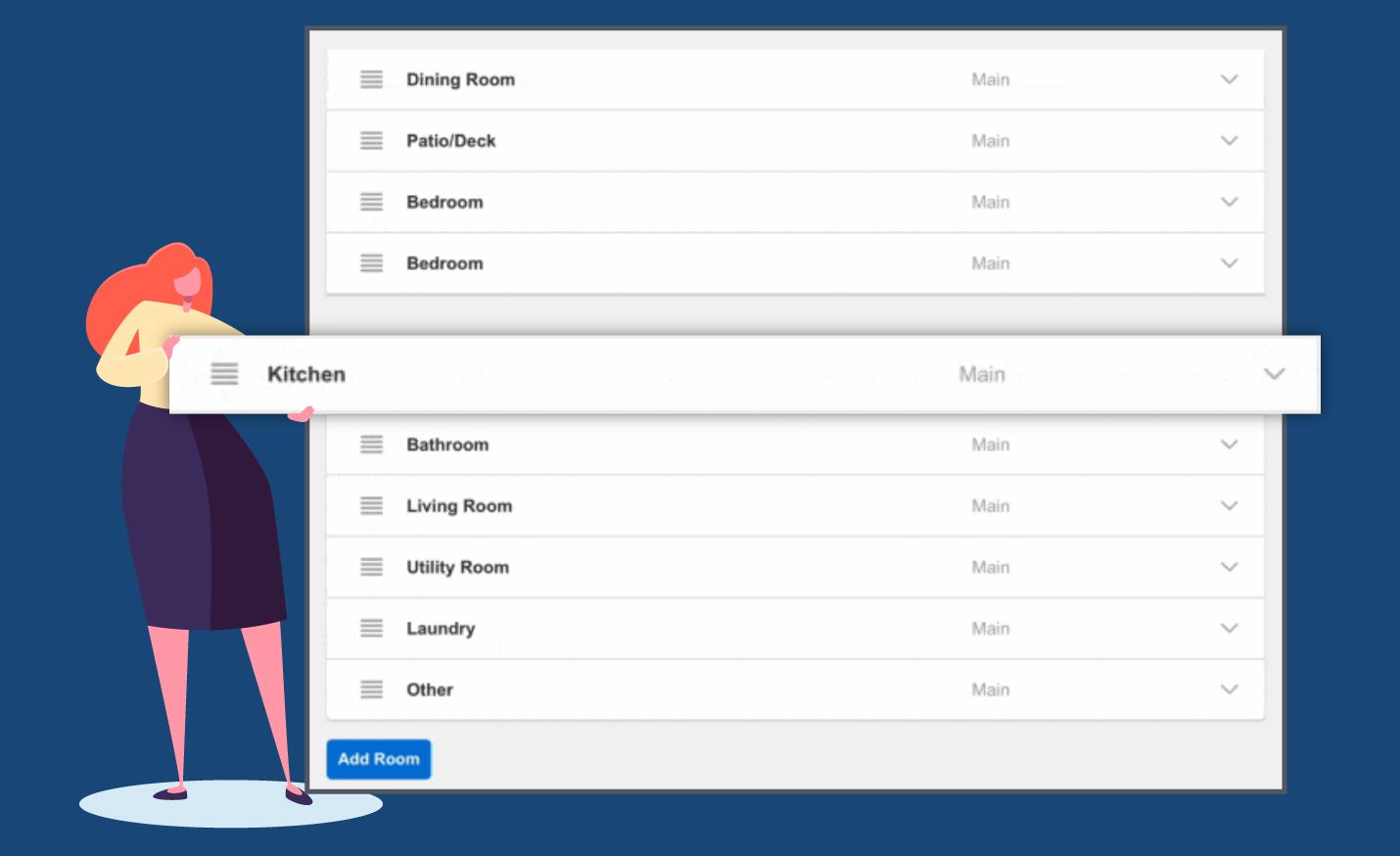
You can enter the Rooms fields now. You're not required to add room details in most cases. Click "next" to continue.
Back to Top
-----------------------
How do I change the status of a listing?
The "Status and Price Change" section contains links to specific functions for listing maintenance. Click on a link to advance to the appropriate screen for entry.
http://members.x-mls.com/html/help/chglistingoverview.html
Back to Top
-----------------------
How do I email a Listing?
You may e-mail from the Search results screen by clicking on the E-mail Page icon, or click on Create Reports to e-mail a full listing report.
At the top of the page you should see the primary e-mail address that has been entered in your profile information. Type in the e-mail address of the party you wish to send to in the field labeled "To:". You may select to send a copy to yourself or to be notified when the party has viewed the e-mail by checking the boxes provided. You may also "carbon copy" someone (ex. co-listing member or broker) by typing their e-mail address in the "Cc:" field.
The "Web page personal message" is the message that will appear at the top of the listing that the recipient views after clicking on the link from within the e-mail. This could be a statement about the listing or anything related to how the property meets the needs of the client. The field will allow up to 90 characters. You may select the font, font size, style and color from the drop-down and check box fields provided.
The "E-Mail personal message" is what will appear in the Subject line and in the body of the e-mail itself. You may use the default entry or enter what you would like. Your profile information will appear below the body of the e-mail message and you may also edit that as you wish.
When you are ready click "Send page" at the bottom of the screen. You will only receive a confirmation of the e-mail being sent, so be sure that you are satisfied before clicking "Send page".
Back to Top
-----------------------
How do I save a search or set up a Prospecting Event? (Automatic Email)
You may begin by entering a new prospect under Prospecting, Prospect Management on the menu at the left side of the screen. You may also edit/create a search by clicking on the Saved searches link on the menu at the left side of the screen.
Save Search- Step 1
On this screen is the process for saving a search. First, give the search a name. If this is a New search, click the radio button next to New and type in the name of the search. If this search is going to replace an existing search, click the radio button next to Existing and choose the search to be replaced from the list.
Choose a contact to associate the search with. If you are not associating the search with a prospect, click the radio button next to None. If you are attaching the search to a new prospect name, click the radio button next to New and type in the name of the contact. If the search is to be associated with a prospect that has already been established in the system, click the radio button next to Existing and choose the name of the prospect from the list.
If you intend to have the search track new matches as they are entered into the system, you may click on the Advanced Search Options link to change any of the defaulted values. You may change the settings for what they system should consider a "new" listing. (New listings, Price Changes, Status Changes, Text Changes.) Also, you may specify a time frame for how far back to look for "new" listings. 24 hours is the default, if something else is desired it may be entered here. Finally, a View or Short Display may be selected to be the view that will always be associated with the search.
If you would like to have the system send the automated emails as new listings are entered into the system, click Add Auto Emails, otherwise, if ready to save click the Finish button.
http://members.x-mls.com/html/help/savesearch.html
If you already have a saved search and you want to change it to e-mail the prospects, click on Prospecting and Automatic e-mails.
Email Prospecting Step 1
The box on the left contains all your Saved Searches. Email prospects may be added to any of these Saved Searches. Any which contain email prospects will be enclosed in brackets "[ ]" and highlighted in red.
You can use your mouse to select a specific entry in the list. You may also use your arrow keys to scroll up and down in the list. When an entry that is selected has one email prospect (event), the details of the event will be shown on the right. If there is more than one event, they will be listed on the right.
Click on "Edit" to add an event to an entry that doesn’t currently have one or to modify an event for an entry that does currently have one. If an entry has more than one event you can click on the event name to begin editing it.
http://members.x-mls.com/html/help/emailprospecting1.html
Back to Top
-----------------------
Why cant I extend an expired Listing?
Your MLS sets the policies regarding extension of listings. Please contact the MLS office with any questions regarding policy and regulations.
Back to Top
-----------------------
How do I search by address?
Click on Address under the Search header of the menu at the left side of the screen.
Address Search
You may search for listings by address upon entering the information on this screen. Click in the fields to enter information. You may use a range of house numbers, or enter the exact number in both fields. If you are not sure of the spelling or the exact street name you may use an asterisk (*) as a wildcard character (ex. north* would bring results for north, northwood, northstar etc.). You may enter a status change date range to search with by typing in the dates or using the date picker to narrow your search. You may also narrow your search by choosing to include only your listings, your office's listings, or your company's listings by clicking on the radio buttons at the lower left. Click "next" to display the search results.
Results of an address search can be sorted or viewed in the same manner as any saved search. Click on the headers above the columns to change the sort order. Click the selection box next to the list number(s) of choice and select options for viewing or printing the listing. Only those listings entered by the specific login name being used can be edited or modified. Click on the camera icon to view any photos that are available for the listing. Click on the Create Reports icon to view or print a full listing report or custom report.
http://members.x-mls.com/html/help/addresssearch.html
Back to Top
-----------------------
Why cant I email? I have no Next button on the bottom of the page.
You must have a primary e-mail address in your profile. In the left frame, click on "Preferences" - "My Profile" - "My Email Addresses"
My E-Mail Addresses
To add a new e-mail address, click "New". Use your tab key, or click from field to field. Click "Next" to return to the add/edit screen.
To edit an existing entry, click on the entry to highlight it and click "edit". Use your tab key, or click from field to field to make any changes. Click "Next" to save your information.
To remove an existing entry, click on the entry to highlight it and click "remove". Click "next" to remove the entry shown, and it will return back to the edit screen.
Back to Top
-----------------------
How Do I set up a Quick Search Template?
In the left frame, click on "Preferences" - "My Quick Searches"
Quick Search Preferences
You may design your own search templates from this screen to provide a faster route to your desired results.
Click "new" to create a new template. Type a name for the template in the field provided. Select whether you wish to have the detail group names print in front of the details by clicking on the appropriate radio button. Select the property type or types by clicking to highlight them (hold down your control key to select multiple types). You may also choose whether you wish to make the template inheritable ( ex., MLS for all members -- office for its own members to use). Finally, you must select the default view to be used when viewing the results generated by searching with the template. The views that appear have been created under Preferences, Views within the "tree" menu at the left side of the screen. Click "next" when you are finished with your selections.
You must now choose the fields to be made available for searching within your new template. Click on the field or fields you would like on the left side of the screen (hold down your control key to select multiple fields). Then click the "Add" button below your selections and the fields will appear in the Template Layout window at the right. You have the ability to highlight fields within the layout window and change their position or remove them by clicking on the buttons on the right. When you are satisfied with your selections, click "Next" to continue on and save your template.
To edit an existing template, click on the name to highlight it. A description of the template will appear at the right side of the screen. Click "edit" at the bottom of the list. After you have made your changes, click "Next" to proceed on and save your changes.
To remove an existing template, click on the name to highlight it. A description of the template will appear at the right side of the screen. Click "remove" at the bottom of the list. You will proceed to a confirmation screen.
Back to Top
-----------------------
How do I bring up all the listings on one page?.
Click on the highlighted total listings at the top of the search results page.
Back to Top
-----------------------
How do I change my Password?
In the left frame, click on "Preferences" - "My Profile" - "Change Password"
Change Password
Click on the "Old password" field and enter your existing password. Use your mouse to click on the next field or click on the "New password" field and type in your entry. Your password must be between four and eight characters. Use the tab key or click on the "Retype new password" field and enter your new password again for confirmation. Click "next" to confirm your new password.
Back to Top
-----------------------
How do I choose more than one field?
Hold your Ctrl key down and click with your left mouse button.
Back to Top
-----------------------
Why am I getting an SQL error on my screen when I click the Next button?
This error is related to duplicate requests (Ex. Clicking back and forward in your browser). Be sure to return to your search results page before sending additional e-mail pages, and/or be careful that you're only "single clicking" when pressing command buttons.
Back to Top
-----------------------
Ive saved my password. Now, Im the only one that can log in. How come?
From the pull-down menus in Internet Explorer, click on Tools, Internet Options, Security, Custom Level. Scroll to User Authentication, click Prompt for username and password. Also, click on the "Advanced" tab & scroll down to security and select "Empty Temporary Internet Files Folder when browser is closed". Click Ok. Click Ok to close the Internet Options screen. Exit all programs, Click Start, Restart.
Back to Top
-----------------------
I used to be able to copy photos to another program. Now theyre blurry. How come?
Click on the picture. Copy it from the full size image that appears in the new window.
Back to Top
-----------------------
When I print a listing, why does it use two sheets of paper?
On your browser, click on File, Page Setup. Change your margins to read 0.25 on Left, Right, Top and Bottom. Click Ok.
Back to Top
-----------------------
How do I set aside some of the listings for viewing later?
To create a new listing cart, first create any kind of search and view the results. Then select the listings you wish to place in the cart, and click the "Save Cart" button on the left side of the toolbar. You will be brought to the Save Listing Cart screen where you may type in a description and select the view you wish to associate with your listing cart.
Back to Top
-----------------------
How do I send an email to everyone in the board?
In the left frame, click on "Daily Functions" - "MLS email"
Internal E-mail Client
The e-mail client enables you to send messages to an individual, an entire office, or the entire MLS. Recipients must have their e-mail address entered in their Profile.
Click on the drop-down menu at the top to designate who the e-mail is from. From the "MLS/Office Broadcast" selection box you may choose to send to the entire MLS, or to any number of offices you wish. Hold down the control key to select/deselect one or more offices by clicking on their names, then click "Add" to add them to the list of recipients at the right. To remove a recipient from the list, click to highlight the name you wish and click "remove Recipient". You may use this same process to send to individuals from within the "Individual e-mails" selection box.
Type a brief description of your e-mail in the "subject" field and click your "Tab" key to begin entering your message. When you are finished click "Send Mail" at the bottom of the page. You will see a verification message once the e-mail has been sent.
Back to Top
-----------------------
When entering a listing, I clicked Next to save it and got a screen that said that certain fields need to be filled in. Why is this?
All fields appearing in Red are Mandatory fields. You cannot move on to the next screen until all mandatory fields have been completed. Mandatory fields are determined at the MLS level. Fill in the information and click the Next button to go to the next step.
Back to Top
-----------------------
How do I find the history on a listing?
On the Search Results page.
Clicking on the "triangle" icon next to the listing number will open a window allowing access to items attached to the listing, such as photos, supplements, virtual tours and documents, as well as the ability to edit a listing or view its history. You will only be allowed to make changes to the listings that were entered by you, according to the login name being used.
Back to Top
-----------------------
How do I sort the columns on the Search Results page?
You may sort the listings shown by clicking on the column header of choice.
Back to Top
-----------------------
Why is private information showing up on my listing printout?
In the left frame, click on "Preferences" - "General"
When you select to "View Report", choose whether you want the public or private version.
Back to Top
-----------------------
How do I see what my Search Parameters are without clicking back?
Click on the box with a triangle next to Search Results on the Search Results page. This will also allow you to edit your Search.
Back to Top
-----------------------
Why arent my columns sorting on the Search Results page?
In the left frame, click on "Preferences" - "General"
Click-to-Sort short display columns - Checking this box allows you to click on the short display headings to sort column values from ascending to descending. Changes made on this screen will only be saved by clicking "Next" at the bottom of the page, and then confirming on the following screen.
Back to Top
|